 CalendarBar
Always-visible calendar
Keep your calendar on screen in Windows 11.
Windows 11 has no setting for this. CalendarBar puts today's meetings on a thin bar at the edge of your screen.
Why I built it.
I got tired of finding Outlook among all my open windows, clicking Calendar, finding the day, then finding the meeting. I wanted my day always there, so I could look at it without changing my focus. So I made it.
What Windows 11 gives you.
- Taskbar calendar
- Shows the month. You click the clock to open it, and your meetings aren't there.
- Widgets board
- Has an Outlook Calendar widget. The board opens over your work and closes when you click away.
- Outlook beside your work
- Stays visible, and takes a large part of your screen to do it.
- Desktop widgets
- Sit on the wallpaper, so your windows cover them.
Set up CalendarBar.
- Install it. CalendarBar comes from the Microsoft Store.
- Connect your calendar. Pick classic Outlook, Microsoft 365, or a Google Calendar, iCloud or Outlook.com link.
- Pick an edge. Dock the bar left or right. It can make room like the taskbar or float over your apps.
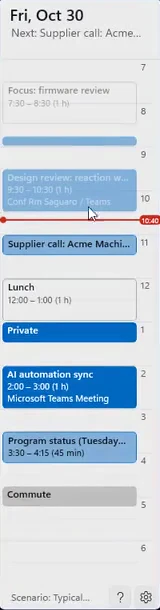
Stop opening your calendar.
Put your whole day at the edge of the screen.
Get it from the Microsoft StoreRequires Windows 11.